
The world of digital analytics has gone through a massive change, and the epicenter of this change is a concept called an event. We started our journey with sessions and pageviews, today, everything is an event. With over 14.2 million websites relying on Google Analytics 4, it is evident that the new approach will focus on a more fine-grained, powerful, and user-centric model where every interaction is an event.

This guide helps you become fluent in the new language of user behavior tracking. Understanding events in Google Analytics 4 is no longer a niche skill; it is a foundational requirement. We will build the GA4 event model from the bottom up and illustrate how to convert user actions into strategic business intelligence in a clear and practical manner. It will enable you to shift focus from page loads to understanding the full customer journey.
The Unstoppable Shift to Event-Based Analytics in GA4
Let’s be clear: The era of Universal Analytics is over. It’s not a simple upgrade, as the date July 1, 2023, marked a philosophical change regarding how we track users on the website. The main idea of this guide is mastering events in Google Analytics 4 as the basis for insightful and actionable analytics. If you are going to make business analytics decisions, you need to master this model.

Why GA4 Events Are the New Standard
The primary reason for the increase in the GA4 adoption rate is the need for a more holistic view of the customer journey. It’s a strategic response, reflected in over 14.2 million websites using GA4 by early 2025. This is a strategy that is positioned to deepen customer understanding and tracking.
Innovation in Google Analytics is primarily linked to the new data model. In the past, Universal Analytics considered interactions as different “hit types” (pageviews, transactions, social clicks, etc). GA4 removes this complexity by evaluating every interaction as an event.
This change has important strategic benefits:
- Unified Cross-Platform Tracking: GA4 was built to track users as they transition from a website to a mobile app, offering a complete account of their journey.
- Enhanced User-Centric Measurement: Analytics has, until now, been session-based. GA4 shifts the focus of analysis to the individual, making it possible for brands to track and analyze users’ behavior over the entire lifetime of their relationship with the brand.
- Flexibility and Customization: For your business, you can specify what an event is. This means you can track critical interactions, such as “add to cart” clicks in an e-commerce shop or demo requests in a B2B environment. So basically, you can extend the framework by setting up your custom events, and hence, working with goals and conversions is much easier. However, it comes with a learning curve, as we will see further in this article.
Practical Takeaway: Universal Analytics used to tell you how many times your pages were viewed in a session. Google Analytics 4, on the other hand, is designed to tell you what users do at every stage of their engagement with your brand. This is the first time actions, not pages, are counted. This is the new way of analytics.
Deconstructing GA4 Events: A New Language for User Actions

Mastering events on Google Analytics 4 involves abandoning the session-focused approach of Universal Analytics. Analytics used to operate around sessions, which would encapsulate a series of pageviews and hits, much like a store receipt summarizes the purchases without detailing what the consumer bought, or the aisles they traveled through.
GA4 completely inverts this model. It functions less like a receipt and more like a detailed log of every single action taken. In this event-driven framework, the session is no longer the primary unit of measurement; it is simply another event, session_start, that provides context for other interactions
GA4 records individual actions taken on a website or app, clicks, scrolls, and every view, in real time as distinct events. This captures every constituent behavior in a session as an individual event, which forms the foundational principle of data collection and analytics in GA4.
At its core, GA4 describes every action taken by a website or app user as an event. Although this seems like a simple, technical distinction, it greatly expands the ways in which user behavior can be analyzed. Instead of grouping actions as a session, every interaction can be seen as a valuable and distinct data point. Finally, actions can be broken down to the most granular level, which enables deep analytics.
Here’s how you can analyze user actions in GA4:
- Loading a page? This is the
page_viewevent. - Scrolling down the page? This is captured as a scroll event.
- Clicking an outbound link? This triggers a click event with parameters detailing the destination.
- Submitting a contact form? This can be tracked as a
form_submitevent. - Watching a video? This can generate a sequence of events:
video_start,video_progress, andvideo_complete.
Every user interaction is captured with a unique context. This allows detailed analysis and understanding of any segment of a user journey. Knowing the pages a user visited no longer suffices. We therefore focus on all the specific actions taken on those pages.
This event-based model is what makes GA4 revolutionary across web and mobile. All the behavioral data is merged, and a unified customer view is created for powerful analysis.
The Four Main Categories of GA4 Events
To collect data in a structured and logical way, Google classifies GA4 events into four distinct categories. Knowing this classification is vital for developing an effective and actionable tracking plan.
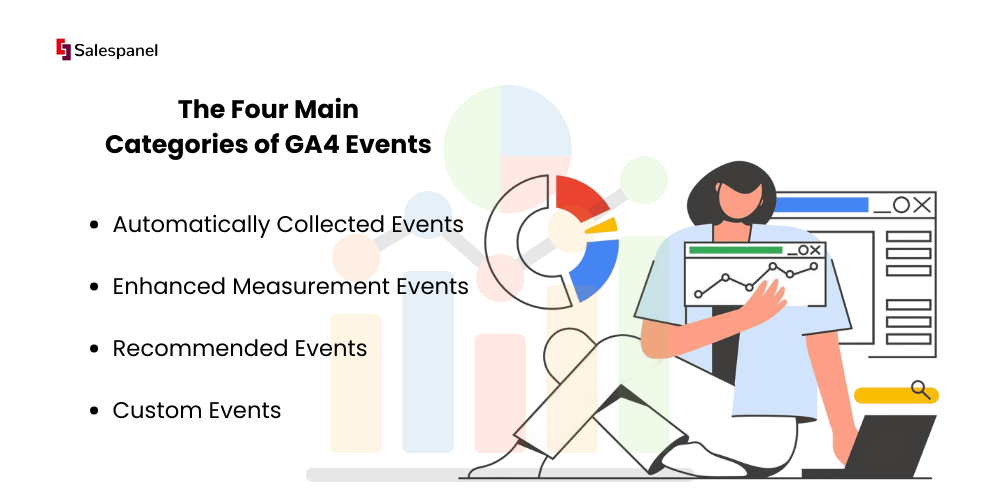
- Automatically Collected Events: These don’t need any special configuration.
session_startandfirst_visit. These are examples of events captured by default when GA4 is first set up. - Enhanced Measurement Events: These are also automatically collected, but can be turned on or off. Events related to common web activities, such as scroll (
scroll), outbound clicks (click), and file downloads (file_download), are captured. - Recommended Events: Google provides suggested predefined event names and parameters for common use cases like login for user sign-in and purchase for e-commerce transactions. Best practice is to use these predefined events.
- Custom Events: For interactions that are unique to your business, you can create custom events. Here, you will set your own event names and parameters, such as micro conversion actions,
demo_request, or atrial_signup, to evaluate the impact of your value actions.
This is a significant architectural upgrade, as with GA4, you are able to track more than 200 metrics and dimensions combined across the web and app streams for a unified user journey.
The Foundation: Automatically Collected and Enhanced Measurement Events
The moment the GA4 tracking code is deployed, data collection begins. GA4 automatically captures a suite of core events, providing baseline metrics without any manual configuration. These are divided into two groups.
Automatically Collected Events represent the absolute fundamentals for basic measurement.
- session_start: Fires when a user initiates a new session on your site or app.
- first_visit: Logs the very first time a unique user arrives.
- user_engagement: Triggers after a user has been active for over 10 seconds with the page in the foreground, or when a conversion event occurs.
Enhanced Measurement Events are also automatic but can be toggled on or off within your GA4 data stream settings. They are invaluable for tracking common on-page interactions.
- page_view: Records every time a page loads or the browser history state changes.
- scroll: Fires when a user scrolls 90% of the way down a page, serving as a simple indicator of content engagement.
- click: Tracks outbound clicks that navigate a user away from your current domain.
- file_download: Tracks when users click on a .pdf, .docx, or .zip file linked on your site.
- video_start, video_progress, video_complete: Records user interactions with your site’s embedded YouTube videos.
- view_search_results: Shows when a user searches for content on your site.
Practical Example: For a B2B SaaS company, these built-in events immediately provide a rich dataset. You can determine how users discover your site (first_visit), check engagement on your blog (scroll), and monitor case study downloads (file_download) – and all of this comes with zero custom coding required.
The Best Practices: Recommended Events
The next tier includes Recommended Events. These aren’t tracked automatically; however, Google has a predefined list of event names and parameters for specific business actions across various industries.
Following these recommendations is the best strategic practice since it keeps your data clean and consistent. Moreover, it allows your property to take advantage of specialized reports that Google may offer in the future.
Google categorizes these recommendations by industry:
- All Properties: General actions like
login,sign up, orshare. - Retail/E-commerce: Standard e-commerce actions like
add_to_cart,begin_checkout, andpurchase. - Games: Industry-specific events like
level_uporunlock_achievement.
Practical Example: If your SaaS platform has a user login feature, instead of creating a custom event named user_logged_in, it is best practice to simply use Google’s recommended name: login. You may also add a suggested parameter like method to track how they logged in—’Google’, ‘Email’, or ‘SSO’. Standardization of event names and parameters greatly improves the long-term value and comparability of your data.
The Custom Solution: Custom Events
Custom Events are the most powerful and flexible feature of GA4. If none of the other event types cover a core user action for your business, you can create one from the ground up.
You can define the event name and all the parameters, which means you can capture the data that matters most for your business.
Practical example: A request for a demo is a primary conversion for a B2B Technology Company. This is a perfect use case for a custom event.
- Event Name:
request_demo - Custom Parameters: Can provide additional value, like
form_location(‘homepage_banner‘ vs. ‘pricing_page‘) orproduct_interest. If your company has multiple products. The request_demo custom event lets you measure the lead generation funnel with extraordinary precision.Form_locationwill tell you which pages and products are generating the most qualified interest, a clear signal for focused marketing spend. This is the value of moving from basic data collection to data-driven decision-making.
Unlocking Deeper Insights with Event Parameters

While events explain something that has happened, parameters explain the context of how and why something has happened. For example, a file_download event happening is only somewhat useful, but knowing that the downloaded file was the Q4-B2B-Marketing-Report.pdf is invaluable.
This is the purpose of event parameters in Google Analytics 4. They describe the context of your events and expand your data, enriching it beyond a simple list of user actions, into a narrative.
Every event has a story. For example, the page_view event is the headline, while the page_location parameter is the detail. This is the clue and level of detail that one needs in order to do a meaningful analysis and to go beyond simple counts to real user behavior. Also, every event in GA4, regardless of whether it was automated or custom, has the potential to be enhanced with these additional data points.
Automatically Collected vs. Custom Parameters
Just like events, parameters come in two types. With built-in events, GA4 automatically gathers a collection of default parameters. For example, when Enhanced Measurement captures an outbound_click, GA4 gathers additional parameters like link_url, link_domain, and link_text. This is very handy when trying to understand where users go after they leave your site.
Still, custom parameters offer the most analytical value.
These are the specifics you set to collect data that is specifically relevant to your business. This enables you to add your business logic and context to your data, increasing the value of your reports tremendously.
Let’s go back to our B2B tech company that was tracking the request_demo custom event. Seeing the event count shows the volume of requests. But the custom parameters help provide answers to some strategic questions the company might have.
- product_interest: Which product is the user interested in?
- form_location: Was the request made through the homepage banner, the pricing page, or a blog post CTA?
- user_type: Was this person a ‘trial_user’ or ‘new_visitor’ through the funnel?
The difference is in the type of question that gets answered. Instead of, “We got 100 demo requests”, they will now get an answer to, “Our new homepage banner drove 45 demo requests for Product X, particularly from new visitors, and it was 30% more effective than the pricing page CTA”. This is the difference between data and intelligence.
Putting Custom Parameters and Dimensions to Work
This particular point is very important from a technical perspective. In order to use your custom parameters in GA4 reports, there is a two-part process that needs to be completed. The first part involves sending the parameter along with your event, usually with Google Tag Manager (GTM). Second, you must register that parameter as a custom dimension within the GA4 interface.
A parameter is the raw piece of information sent with the event, a key-value pair of data. A custom dimension tells GA4, ‘Use this parameter for filtering, reporting, and analysis.’ If you don’t register the custom dimension, the information is still collected, but it remains inaccessible for reporting.
This is the example workflow:
- Define the Parameter in GTM: In your GA4 event tag configuration within GTM, open the ‘Event Parameters’ section. This is where you will add your custom details to complete the parameter configuration. You will set a name (e.g.,
form_location) and a value, which is usually a GTM variable that will dynamically capture the information (like a Data Layer variable or the built-in {{Click ID}} variable). - Register as a Custom Dimension in GA4: Go to
Admin > Custom definitionsin your GA4 property. Click on Create Custom Dimension. Enter a meaningful “Dimension Name” that will show up in your reports (for example, “Form Location”), and match it to the exact “Event parameter” name you defined in GTM (form_location).
Mastering this process ensures the context you collect is fully usable. A solid strategy for your events and their parameters will create a solid, flexible data layout that will clearly show every key interaction.
Getting Your Hands Dirty: Implementing and Verifying GA4 Event Tracking

Understanding the theory behind things is the first step, but real value comes from putting things into action. When it comes to setting up Google Analytics 4 event tracking, it takes some time and careful planning. For most marketers, Google Tag Manager (GTM) is the best option to serve as the central command for this. GTM enables you to manage all tracking tags and avoids the need for constant developer intervention.
The first step of the process is converting a business objective into a technical configuration, for instance, ‘tracking demo requests’. In this instance, you will create a tag in GTM to package the event data, a trigger that specifies the exact conditions that must be met in order to fire the tag, and the variables that dynamically populate the data. This allows you tight control over what data is being collected and how.
A Real-World B2B Example: Nailing the Demo Request Event
To better demonstrate this, let’s consider a classic B2B example of tracking form submissions for a “Request a Demo” button. This is an important action and is a great candidate for setting up a custom event.
To recognize successful submissions, having a dependable trigger condition is essential. Although a developer can implement a custom event on the data layer, a standard approach is to use the redirection to a “Thank You” page. For this guide, let’s say a successful submission of a form redirects you to a page where the URL contains /demo-thank-you. This will be our trigger.
Here is the step-by-step implementation in GTM:
- Building the Trigger: First, go to the Triggers section and click on New. For this trigger, choose the Page View option. Set it so it only activates on Some Page Views and add the condition Page URL contains /demo-thank-you. For its name, use something clear and easy to remember, like Trigger – Demo Thank You Page.
- Creating the GA4 Event Tag: Now, go to Tags to create a new one and choose the option Google Analytics: GA4 Event. Remember to connect it to your GA4 Configuration Tag for Google Analytics GA4, which is set as your primary configuration.
- Event Name: Now, setting the Event Name is very important and should be set in snakecase, like
request_demo. This is the name that will appear on your GA4 reports. - Event Parameters: Next, add Event Parameters to provide context for the event. You will set a parameter with the name
form_locationand use the built-in variable {{Page Path}} for the value. This captures the path of the page for the form submission.
Connecting the Pieces: Now you will connect your Trigger – Demo Thank You Page to the request_demo GA4 Event Tag. Then, you will save the tag. When you publish your changes in the GTM container, this tag will fire every time a user requests a demo successfully.
Don’t Guess, Verify: Making Sure Your Events Are Firing Correctly
Performing an event is only half the battle; the other half is verifying it. Sending incomplete or erroneous data is usually more harmful than sending nothing at all. When it comes to real-time debugging tools, GA4 offers you the Realtime report and the more powerful DebugView.

DebugView needs to be enabled on your browser session. The most straightforward way to accomplish this is by using GTM’s Preview mode, which automatically adds the debug_mode=true parameter to your events. Otherwise, you can rely on the GA Debugger Chrome extension.
Once you’re in debug mode, go to Admin > DebugView in your GA4 property. You can see all the events collected from your browser, streamed live and minute by minute.
It provides a clean, chronological feed of exactly what GA4 is receiving from your session.
You can inspect any event in the stream. From a standard page_view to your custom request_demo event, you can see every parameter. This is how you verify that your form_location parameter is being captured.
Crucial Takeaway: It’s important to confirm that your tracking works. Always use DebugView to validate every new event you create. Verify that it fires when it is supposed to, that the name is correct, and that all custom parameters are there with expected values. If you do this, you will not later find useless or flawed data.
Beyond the Basics: Connecting GA4 Events to Business Goals

The first step is capturing event data. The next step involves tying those clicks, scrolls, and form submissions to your business goals. For B2B marketers, this involves moving past vanity metrics like traffic and using GA4 events to assess what really drives revenue—qualified leads, trial sign-ups, and sales pipeline.
Knowing the difference between an event and a conversion is crucial. A file download is a valuable engagement event, while a request_demo submission is a conversion. It is a high-value action that signals intent to buy.
From Events to Conversions
In GA4, turning a standard event into a conversion is easy. Go to Admin > Events, and click the toggle next to any event you want to mark as a conversion. Once something like conversion events, trial_signup, or contact_form_submit is conversion-marked, GA4 will start to prioritize it in the reporting. You will also get separate reports that allow you to dive deeply into the critical funnels you have, since those events generate a dedicated report.
Making this change is a game-changer. You are telling GA on the analytics side, “This is what we want you to optimize for and this is what we want to focus on.” It allows you to focus your analytics and optimization efforts where they matter most.
Identifying High-Intent Prospects
A main challenge for B2B sales is GA4’s limitation for aggregated and anonymous analysis. It’s great for reporting what happened and measuring, but it isn’t able to tell you who did it. You know five users downloaded your pricing sheet, but there’s no way to know which companies those users belong to.
In this case, you must add a specialized tool. The purpose is to apply identity resolution on top of behavioral data. While GA4 tracks clicks and downloads anonymously, Website visitor tracking from Salespanel starts working to de-anonymize that traffic. When you identify the companies behind the visits, you can connect the event data in GA4 with real business opportunities.
This creates a powerful synergistic workflow:
- GA4 quantifies engagement: It shows which content, pages, and features people interact with the most.
- Visitor identification tools qualify intent: They reveal which exact companies are interested in the item.
A video_complete or pricing_page_view event is no longer just a number in a report. You can assign that activity to a target account, which empowers your sales force with actionable intelligence. That a key prospect spent ten minutes on your case studies means that your sales team can make a relevant, timely offer. That’s how you turn anonymous GA4 data into active B2B lead generation.
Answering Your Burning GA4 Event Questions
| Question | Quick Answer |
| What’s the biggest change from UA events? | Everything is an event, even a page view. UA used to separate different “hit types” such as page views, events, and transactions. GA4 combines every event type and allows much more flexibility for cross-platform and user-centric tracking. |
| Why aren’t my custom parameters in my reports? | This is the most frequent implementation mistake. You have to manually register them in the GA4 Admin > Custom definitions. GA4 collects the data, but it will remain hidden in reports until you complete this step. |
| When should I create a custom event? | Only after all other options have been explored. First, see if an Automatically Collected event or an Enhanced Measurement event meets your needs. Next, review the Recommended Events. If nothing suitable exists, then build a custom event. |
| How long does it take for data to show up? | Be patient. After creating a new event or registering a custom dimension, you should wait 24 – 48 hours to see the data fully processed in your standard reports and Explorations. |
While this table gives a general overview, let’s delve deeper into these critical points.
What Is the Main Difference Between Universal Analytics and GA4 Events?
The difference boils down to a matter of philosophy. Universal Analytics focused on sessions and worked with a fixed set of “hit types,” such as pageviews, events, and transactions.
GA4 moves away from this model. In GA4, every single user interaction is considered an event. When a user loads a page, a page_view event occurs, a session_start event is triggered, and a purchase event occurs when a purchase happens. This cohesion as a single ecosystem is groundbreaking and permits a much more user-oriented analysis of data collected from a website and a mobile app together.
Why Are My Custom Event Parameters Not Showing in Reports?
This is a common issue with GA4 implementations. Say you set up a custom event, like request_demo, and you’re sending a custom parameter, such as form_location, but it’s missing from the report.
This happens because you’ve skipped a key final step. You need to set the parameter as a custom dimension in the GA4 admin console.
Navigate to Admin > Custom definitions. If you don’t do this, GA4 gathers the parameter data, but won’t give you access to it in the standard reports and Explorations. Just give it 24 to 48 hours for the data to show up.
When Should I Create a Custom Event?
Creating custom events for every interaction can lead to poor and inconsistent data structure. Badly organized custom events result in poorly structured data. It is best to stick to the GA4 event hierarchy.
- First, check to see if the interaction is tracked with Automatically Collected Events.
- Second, check if Enhanced Measurement Events covers the interaction (like scroll or file_download).
Third, check the Recommended Events list to see if there is something relevant (e.g., login or sign_up)
Only if the above do not meet your exact requirements for tracking should you go ahead and create a Custom Event. This methodical strategy is what keeps your data clean and easy to manage.
At Salespanel, we believe that understanding user behavior is the starting point toward deeper engagement. GA4 helps you know the activities of anonymous users, while our platform helps you understand who they are, transforming your analytics into real sales opportunities. Explore our resources to learn more.